ChatGPT
 Grok
Grok Claude
 Perplexity
 Google AI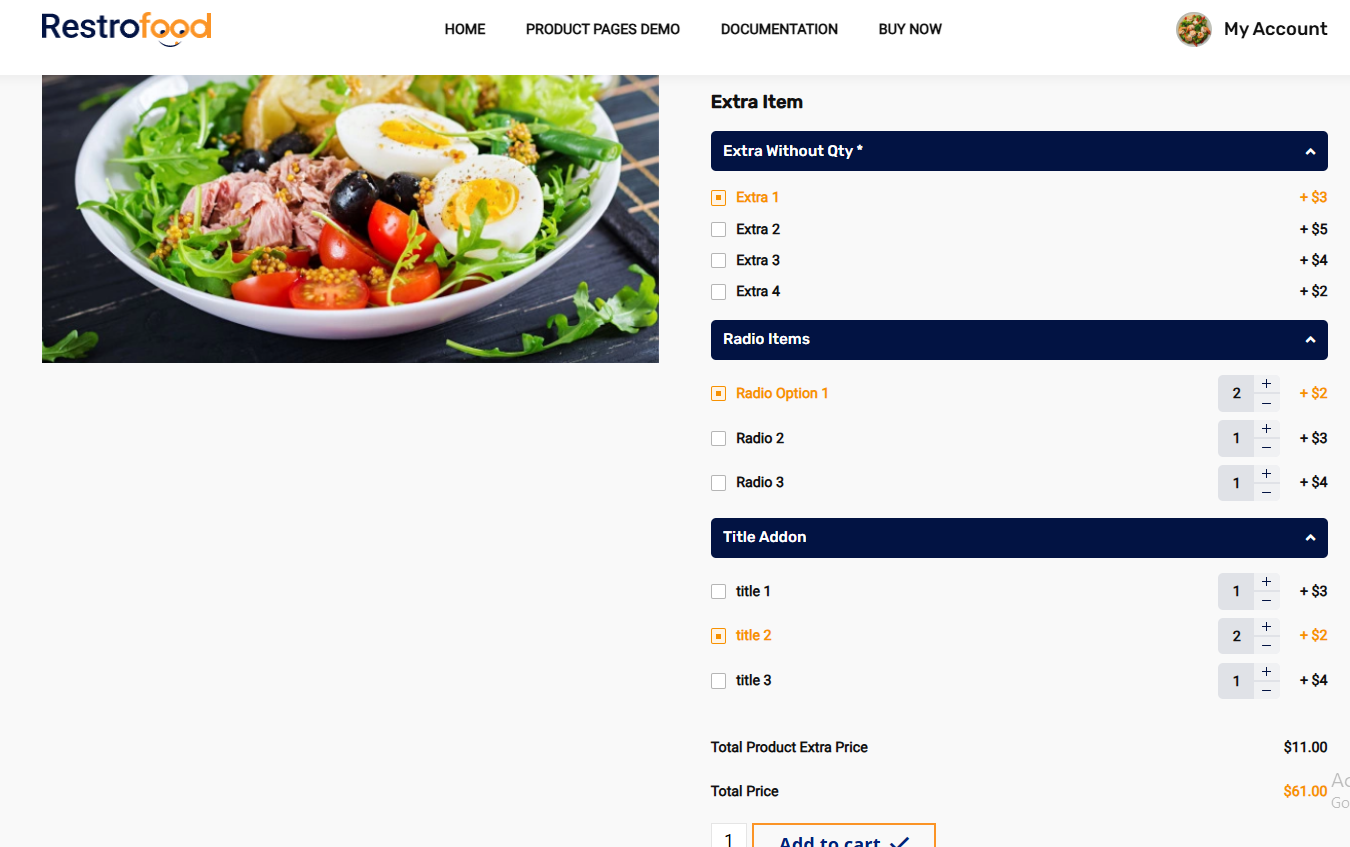
RestroFood Product Add-ons let customers customize an order with extra toppings, sides, sizes, and so on. The Show Quantity Option setting controls whether a customer can pick how many of a given add-on they want, or whether the add-on is simply on or off.
This guide explains where to find the setting, what “Yes” and “No” actually do, and how it shows up on the storefront.
Where to find the setting
The Show Quantity Option control appears in two places, depending on how your add-on group is set up:
- Global Add-on groups – Products → Add-ons in the WordPress admin sidebar. Create or edit a group (e.g., “Title Addon”), and the option sits inside the Extra Add-ons panel alongside List Type and the min/max required fields.

- Per-product feature groups – On an individual product’s edit screen, under Product Data → Add Features. Here you can add one or more groups (via Add Group), and each group has its own List Type and Show Quantity Option, independent of the others.
Both locations use the same underlying logic, the only difference is whether the add-on group is reusable across products (global) or built specifically for one product (per-product).
What “Yes” and “No” actually do
| Setting | Customer sees | Price behavior |
| No | A plain checkbox or radio button. Selecting it turns the add-on on or off, nothing else. | The add-on’s price is added once, flat, when selected. |
| Yes | The same checkbox/radio button, plus a quantity stepper (+ / −) that appears once the option is selected. | The add-on’s price is multiplied by the quantity the customer chooses. |
Show Quantity Option works together with List Type, but the two settings do different jobs:
- List Type (Checkbox vs Radio) decides how many options can be selected in that group, Checkbox allows multiple, Radio allows only one.
- Show Quantity Option decides whether each selected option can be bought in a quantity greater than one.
They’re independent, so you can have a Radio group where the single choice still gets a quantity stepper, as shown in the “Radio Items” example below.
Configuring it, step by step
- Go to your add-on group either Products → Add-ons (global) or a product’s Add Features tab (per-product).
- Under List Type, choose Checkbox or Radio for how the group behaves.
- Under Show Quantity Option, choose:
- Yes – to let customers increase the quantity of a selected add-on.
- No – to keep it a simple one-time selection.
- Optionally set a Feature Section Title (the heading shown on the product page, e.g., “Radio Items”), and Feature minimum/maximum required number to control how many selections are mandatory in that group.
- Add each option’s Feature Title and Price in the rows below, using Add to add more rows.
- Use Add Group to create another independent group with its own List Type and Show Quantity Option, or Remove Group to delete one.
- Update/publish the product to save your changes.
How it looks on the storefront
A single product can mix groups with quantity on and off, since the setting is per group, not per product. For example:
- Extra Without Qty (Checkbox, Show Quantity: No) – customer just checks a box; price is added once.
- Radio Items (Radio, Show Quantity: Yes) – customer picks one option, then can bump the quantity up with the stepper.
- Title Addon (Checkbox, Show Quantity: Yes) – customer can check multiple options, and adjust quantity on each one selected.

Here’s how that plays out on a real order:
| Group | Selection | Qty | Price each | Line total |
| Extra Without Qty | Extra 1 | 1 (fixed) | $3 | $3 |
| Radio Items | Radio Option 1 | 2 | $2 | $4 |
| Title Addon | title 2 | 2 | $2 | $4 |
| Total Extra | $11 |
If the base product price is $50, the customer’s total becomes $61: the base price plus the sum of every selected add-on’s price × its quantity.
Quick tips
- Leave Show Quantity Option set to No for add-ons that only make sense once per order (e.g. “Gift wrap” or “Extra spicy”).
- Set it to Yes for add-ons customers might want more than one of (e.g. “Extra egg,” “Garlic bread,” “Side of fries”).
- The stepper only appears after the option is selected, it stays hidden for unselected options to keep the layout clean.
- Because Show Quantity Option is set per group, a single product can freely mix quantity-enabled and quantity-disabled add-ons, as shown in the example above.