ChatGPT
 Grok
Grok Claude
 Perplexity
 Google AI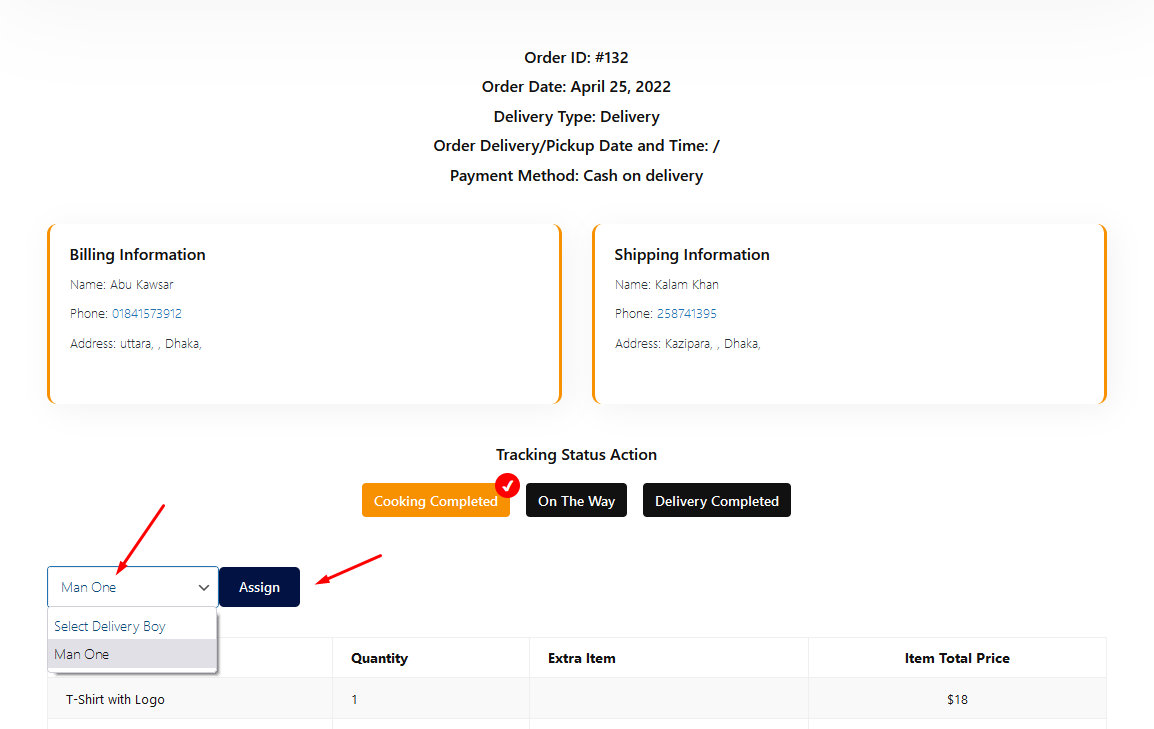
Once an order comes in and is ready to go out, a shop or branch manager can assign it to a specific delivery boy directly from the order details page, no need to switch panels or contact the delivery team manually.
Before You Start
Make sure the following are in place:
- At least one delivery boy account exists in the system. If none has been added yet, the “Select Delivery Boy” dropdown will be empty, and there will be nothing to assign.
- You’re logged in as a Manager (shop or branch), since order assignment is handled from the Manager Dashboard.
- The order you want to assign has already been placed and is visible in the order list.

Steps to Assign a Delivery Boy
- Open the order: From the Manager Dashboard, go to your orders list and click into the order you want to assign (for example, Order #132). This opens the order details page, showing the order date, delivery type, payment method, and the customer’s billing and shipping information.
- Update the tracking status (if needed): Under Tracking Status Action, move the order through its stages such as Cooking Completed, On The Way, or Delivery Completed as it progresses. A checkmark shows the current stage. This step is independent of delivery boy assignment, but it’s usually done around the same time.
- Open the delivery boy dropdown: Just below the tracking status buttons, click the dropdown that says Select Delivery Boy.
- Choose a delivery boy: Select the name of the delivery boy you want to assign from the list (for example, “Man One”).
- Click Assign: Click the Assign button next to the dropdown to confirm. The order is now linked to that delivery boy.
What Happens Next
Once assigned, the order appears in the selected delivery boy’s own admin panel, where they can view the delivery details, track their progress, and update the order as it moves toward completion. The customer can also see delivery/tracking updates as the status changes.
Troubleshooting
| Issue | Likely Cause |
| Dropdown is empty | No delivery boy accounts have been created yet – add one first, then return to the order. |
| Assign button doesn’t seem to do anything | Make sure a delivery boy is actually selected in the dropdown (not left on “Select Delivery Boy”) before clicking Assign. |
| Delivery boy doesn’t see the order | Confirm the order was successfully assigned by reopening the order page; the dropdown should now show the assigned name. |