


Managing order assignments in real-time is essential for keeping deliveries on schedule. If you need to assign an order to the delivery boy from the manager page, RestroFood offers a quick and efficient way to do this right after the order is ready for delivery. Here’s a step-by-step guide to help you get started.
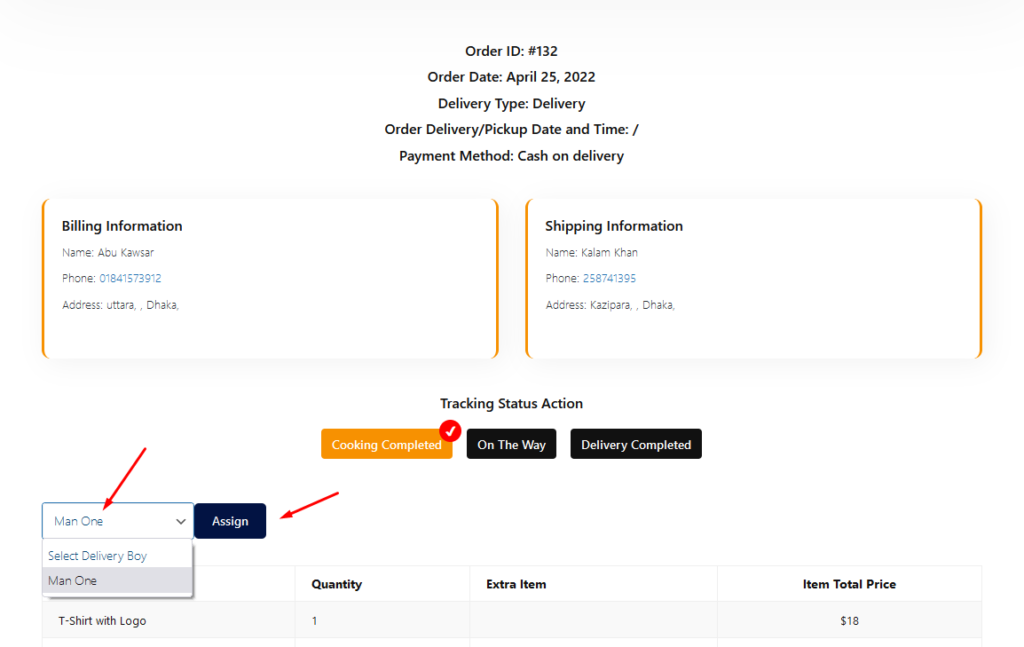
After Cooking Is Completed, the order needs to be assigned to a delivery boy. The branch and kitchen manager page order view popup has a select option to assign a delivery boy. Follow the screenshot below.
Why Assign Orders from the Manager Page?
Using the manager page to assign orders to the delivery boy gives managers a central view of each order’s status. With a streamlined option to allocate orders, the kitchen and branch manager can easily manage delivery schedules, ensuring prompt delivery service for customers.
Steps to Assign an Order to the Delivery Boy from the Manager Page
- Access the Manager Page:
After logging into the manager page, navigate to the order management section. This page displays all active orders that are pending delivery. - Select the Completed Order:
Once the cooking is complete, locate the specific order that is ready for delivery. Select this order to view more details. - Open the Assign Delivery Popup:
Click on the order view popup for the chosen order. Here, you’ll find a drop-down option to assign the delivery boy for that particular order. - Choose the Delivery Boy:
In the assigned delivery field, choose the delivery boy responsible for handling the delivery. This ensures that each delivery boy is properly assigned and notified. - Confirm and Save:
Once the delivery boy is selected, confirm the assignment to update the order status. The order is now marked as assigned to the chosen delivery boy, ready for prompt delivery.
Benefits of Assigning Orders to Delivery Boys from the Manager Page
Assigning orders directly from the manager page not only improves order tracking but also provides:
- Efficient Assignment: By having the option to assign orders immediately after cooking, managers reduce idle time, ensuring the food is fresh upon delivery.
- Clear Communication: Once a delivery boy is assigned, they receive notification of the delivery, helping avoid any confusion and ensuring timely order handling.
- Centralized Control: The manager page serves as a single platform for all order assignments, making it easy to view which delivery boys are available and track active orders.
Screenshot Example of the Assign Delivery Feature
In the screenshot below, you’ll see where to access the delivery assignment option. Simply select the appropriate delivery boy from the list, confirm, and your order is ready for delivery!
Tips for Using the Delivery Assignment Feature Effectively
- Monitor Availability: Regularly check the availability of each delivery boy to ensure that assignments are made efficiently.
- Prioritize Orders: Use the manager page to prioritize orders based on urgency, assigning delivery boys accordingly.
- Track Order Status: Regularly monitor the order status to verify that each assigned order is progressing as expected.
Conclusion
In conclusion, by using RestroFood’s simple yet effective assignment feature, you can easily assign an order to the delivery boy from the manager page. This functionality ensures that all orders are managed smoothly, from cooking completion to delivery, with minimal delays. By streamlining the assignment process, you enhance communication between your kitchen staff and delivery team, allowing for quicker response times and improved customer satisfaction. With this powerful tool at your disposal, you can optimize your restaurant operations, ensuring that each order is handled efficiently and that your customers receive their meals promptly. Embrace this feature to elevate your service quality and enhance the overall dining experience!
FAQs for Assign an Order to the Delivery Boy From the Manager Page
How do I assign an order to the delivery boy from the manager page?
To assign an order to the delivery boy from the manager page, go to the order view popup, select the delivery boy from the drop-down menu, and confirm the assignment.
Where is the option to assign orders to the delivery boy on the manager page?
You’ll find the option to assign orders in the order view popup on the manager page. Select the delivery boy, confirm, and the order is ready for delivery.
Can I assign multiple orders to a delivery boy from the manager page?
Yes, you can assign multiple orders to a delivery boy directly from the manager page by selecting each order and assigning the same delivery boy in the order view popup.
Is it possible to change the assigned delivery boy for an order?
Yes, you can change the assigned delivery boy by going back to the manager page, opening the order, and selecting a different delivery boy from the list.
What happens after I assign an order to the delivery boy from the manager page?
Once you assign the order, the delivery boy receives a notification, allowing them to see the order details and prepare for delivery.
Can I track assigned orders on the manager page?
Yes, after assigning a ready orders as a delivery boy, you can track its status on the manager page, ensuring timely delivery.
Why should I use the manager page to assign orders to the delivery boy?
The manager page provides a centralized view, making it easy to track and assign orders efficiently, streamlining delivery operations for better management.


